
Overview
Cleaner Animator Controller layouts, faster.
AnimFlow Organizer is a Unity Editor tool designed for developers working with large, messy, or hard-to-read Animator Controllers. It scans the selected controller layer, detects Animator states, groups related states, and applies a clean visual layout to improve readability.
It is especially useful when a controller contains many states, multiple layers, or manually placed nodes that have become difficult to navigate during production.
Features
Main Features
Layer Organization
Organize the selected Animator Controller layer or process all layers in one operation.
Smart Layout Modes
Use SmartLayout, FlowLayout, LaneLayout, or GridLayout depending on the controller structure.
State Grouping
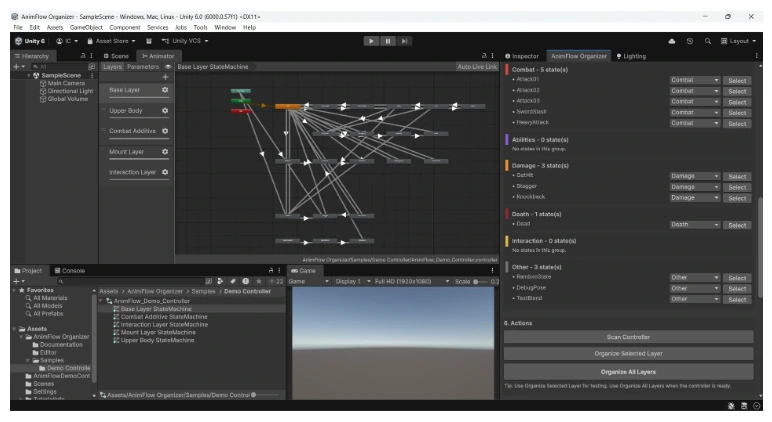
Classify states into Movement, Air, Combat, Abilities, Damage, Death, Interaction, and Other.
Manual Control
Override incorrect groups manually, use custom keywords, select states quickly, and undo changes through Unity.
Safety
Designed to be safe for production controllers.
AnimFlow Organizer only changes visual node positions inside the Animator Controller graph. It does not modify gameplay logic or runtime behavior.
- Rename, delete, create, or modify Animator states
- Create or remove transitions
- Change transition conditions
- Modify Animator parameters
- Modify animation clips
- Change runtime Animator behavior
Installation
Open the tool from the Unity menu.
- Import AnimFlow Organizer into your Unity project.
- Open the tool from the Unity menu.
- Select an Animator Controller in the Project window.
- Click Use Selected Controller From Project or assign the controller manually.
- Click Scan Controller.
Quick Start
Recommended first test.
- Open your Animator Controller.
- Open Tools > AnimFlow Organizer.
- Select the Animator Controller.
- Click Scan Controller.
- Review the detected groups.
- Correct any wrong group using the manual group dropdown if needed.
- Choose SmartLayout.
- Click Organize Selected Layer.
- Use Ctrl + Z if you want to undo the operation.
Horizontal Spacing: 340
Vertical Spacing: 150
Move Entry / Any State / Exit: Enabled
Layout Modes
Choose the layout style that fits your controller.
SmartLayout
Recommended for most controllers. Places the default or idle state as the main hub and separates related groups into clean lanes.
FlowLayout
A general automatic layout mode for quickly organizing states into a readable structure.
LaneLayout
Places groups into horizontal lanes for clear separation between state categories.
GridLayout
Places states into a compact grid, useful for dense controllers or many unrelated states.
Classification
Smart state grouping.
AnimFlow Organizer uses state names, transition parameters, built-in English keywords, custom keywords, and manual overrides to determine where each state should belong.
For example, states named Attack01 or SwordSlash can be classified as Combat. States using parameters such as Speed, Velocity, or IsMoving can be classified as Movement. Parameters are only read for classification and are never edited.
Custom Keywords
Support your own naming style.
Custom Keywords allow AnimFlow Organizer to understand project-specific abbreviations, naming conventions, or other languages. Enable Use Custom Keywords in the Smart Classification section and add keywords separated by commas.
Movement: jog, sneak, roll
Interaction: loot, talk, pickup, open
Manual Overrides
Correct groups before applying the layout.
After scanning a controller, each detected state has a group dropdown next to it. If a state is placed in the wrong group, change the dropdown before organizing the layer.
Manual overrides only affect AnimFlow's grouping and layout calculation. They do not modify Animator Controller logic.
Workflow
Recommended workflow.
- Select your Animator Controller.
- Click Scan Controller.
- Check the detected groups.
- Use manual overrides if needed.
- Choose SmartLayout.
- Start with Organize Selected Layer.
- If the result looks good, use Organize All Layers.
- Save your project.
Unity Notes
Known Unity editor limitations.
Unity's Animator window does not expose every visual control through public editor APIs. Entry, Any State, and Exit may require a visual refresh. The Select button can select and ping a state, but Unity may not always pan directly to it.
If the Animator window does not update instantly, reselect the controller, switch layers, or reopen the Animator window. These are editor visualization limitations and do not affect Animator Controller data.
FAQ
Frequently asked questions.
Does it change Animator logic?
No. It only changes visual state positions.
Does it rename states?
No. State names are not changed.
Can I undo the operation?
Yes. Use Unity's standard Undo command or press Ctrl + Z.
Which layout mode should I use?
For most cases, use SmartLayout.
Support
Support information.
If you find an issue, please include your Unity version, the Animator Controller structure, screenshots before and after organizing, and the steps needed to reproduce the issue.
This helps identify layout or classification problems faster.